

You've recorded footage, but it's sitting on your hard drive because you're not sure where to start. Learning how to edit videos on PC doesn't require expensive software or a film degree—just a clear workflow and a few free tools. This guide walks you through the entire process, from choosing software to exporting a finished video.
Choose the Right Free Video Editing Software for Your PC
Before you touch a timeline, pick software that matches your computer's specs and your goals. Here are the three most practical free options for PC users:
- DaVinci Resolve – Best for professional-level color grading and multi-track editing. The free version is genuinely powerful, but it needs a decent GPU (at least 4GB VRAM) and 16GB of RAM for smooth playback.
- CapCut for PC – Ideal for social media content, quick edits, and auto-captions. It's lightweight, runs on almost any modern PC, and has a built-in library of effects and templates.
- Shotcut – A solid open-source option if you're on older hardware. It's less polished but very stable and supports a wide range of formats.
If your PC has 8GB of RAM and integrated graphics, start with CapCut. If you have a dedicated graphics card and want room to grow, install DaVinci Resolve. Both are free—no watermarks, no time limits.
Set Up Your Project and Import Footage Correctly
A clean project setup saves hours of frustration later. Follow these steps every time you start a new edit:
- Create a dedicated project folder on your fastest drive (SSD if possible). Inside, make subfolders for footage, audio, graphics, and exports. This keeps media organized and prevents 'media offline' errors.
- Open your editing software and create a new project. Set the timeline resolution to match your footage—1080p for most YouTube videos, 4K only if you have the storage and processing power.
- Set the frame rate to match your source clips. If you shot at 24fps, set the timeline to 24fps. Mixing frame rates causes stuttering during playback.
- Import your footage using the media pool or import button. Avoid dragging files directly from your desktop into the timeline—it bypasses organization and can cause performance issues.
Once imported, spend two minutes renaming clips descriptively (e.g., 'interview_wide_take2' instead of 'MVI_0043'). Your future self will thank you.
Master the Core Editing Workflow: Cut, Trim, and Arrange
Editing is mostly about removing what doesn't belong. Here's the workflow professional editors use, adapted for beginners:
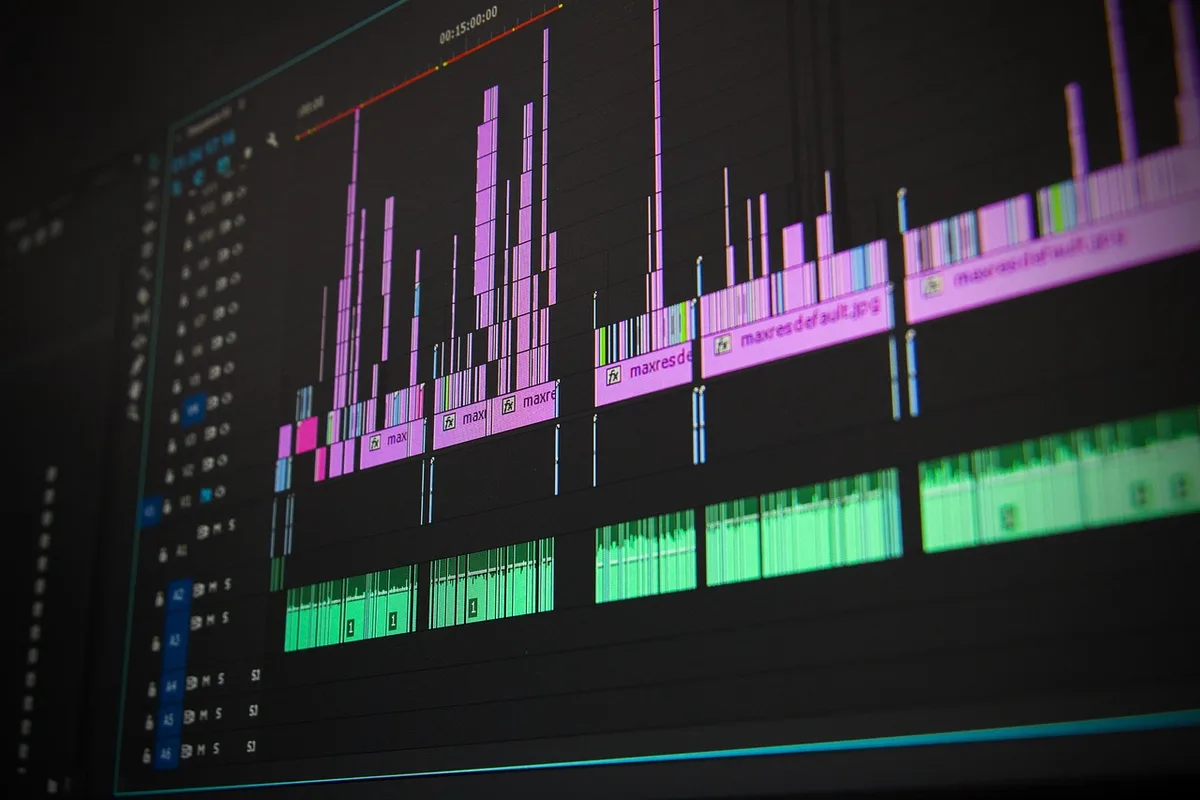
- Start with a rough cut. Drag all usable clips onto the timeline in story order. Don't worry about perfect timing yet—just get the sequence right.
- Use the razor blade tool (or press 'B' in most software) to split clips at natural pause points. Delete dead air, false starts, and repeated sentences.
- Trim clip edges by hovering over the start or end of a clip until the trim cursor appears, then dragging inward. This tightens pacing without deleting the whole clip.
- Add B-roll and cutaways on a track above your main footage. This hides jump cuts and keeps viewers engaged.
- Use ripple delete (usually Shift+Delete) to remove a clip and automatically close the gap. This is faster than deleting and manually dragging clips together.
A good rule: if a sentence doesn't add new information or emotion, cut it. Most first drafts are 20–30% too long.
Improve Audio and Add Music Without Breaking the Mix
Bad audio ruins good video faster than bad visuals. Fix these three things before you export:
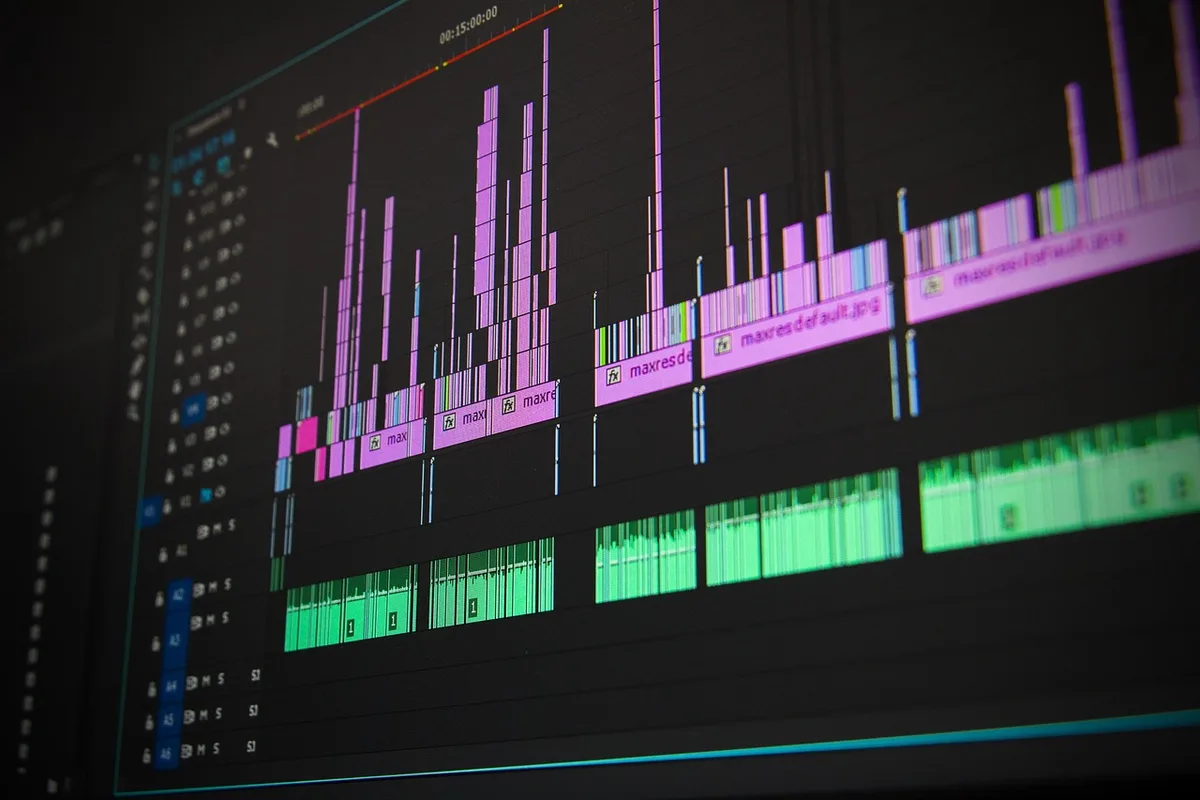
- Normalize voice levels. Select your dialogue clips and apply 'Normalize' to -3dB or -6dB. This brings quiet parts up and loud parts down so viewers don't reach for the volume knob.
- Add background music at -18dB to -24dB. Music should sit under the voice, not compete with it. Use the audio meter to check—if the music peaks above -12dB while someone is talking, it's too loud.
- Use noise reduction sparingly. DaVinci Resolve has a built-in 'Voice Isolation' tool that works well. Apply it at 50–60% strength; too much makes voices sound robotic.
For free music, use YouTube Audio Library or Pixabay Music. Always check the license—some tracks require attribution.
Add Text, Transitions, and Effects That Don't Look Cheap
Less is more. A clean cut with good pacing beats flashy transitions every time. Follow these guidelines:
- Use simple cuts 90% of the time. Save transitions like cross-dissolves or wipes for scene changes or time jumps.
- Keep text on screen for at least 3 seconds. Use a clean sans-serif font like Montserrat or Roboto, white with a subtle drop shadow for readability.
- Animate text subtly. A simple fade-in or slide-up looks professional; spinning, bouncing, or 3D text looks amateur.
- Color grade lightly. Apply a LUT (lookup table) for a quick cinematic look, then adjust exposure and white balance manually. Don't over-saturate—skin tones should look natural.
If you're editing for social media, add captions. CapCut and DaVinci Resolve both have auto-caption features that are surprisingly accurate. Always proofread them—auto-captions mishear names and technical terms.
Export Settings for YouTube, Instagram, and Client Delivery
Exporting is where many beginners accidentally ruin their video quality. Use these settings as a starting point:
- For YouTube: MP4 (H.264), 1080p or 4K, 24–30fps, bitrate 12–20 Mbps for 1080p. Enable 'Hardware Encoding' if available—it's faster and the quality difference is negligible.
- For Instagram Reels/TikTok: MP4 (H.264), 1080x1920 vertical, 30fps, 8–12 Mbps. Keep file size under 100MB for faster uploads.
- For client delivery: Export a high-quality master file (ProRes or DNxHD if they ask) plus a compressed MP4 for review. Always name files clearly: 'ProjectName_Edit_v1_2025-03-15.mp4'.
After export, watch the entire video on your phone and laptop before uploading. This catches audio sync issues, text that's too small, and color shifts that look fine on your editing monitor.
A Practical Takeaway You Can Use Today
Open your editing software, create a new project, and import just three clips. Spend 15 minutes making a 30-second rough cut with no effects, no music, and no text. Export it. That single exercise teaches you more than hours of tutorials—because you'll immediately see what works and what needs fixing. Repeat it tomorrow with five clips. Speed comes from repetition, not from watching more videos.
If you'd rather focus on creating content and leave the editing to professionals, MLHMTECH offers full video editing and content production services for creators and brands—visit mlhmtech.com to see how they can handle the timeline for you.