
You've recorded a great podcast episode, but the raw footage looks flat, the audio is out of sync, and the whole thing feels amateur. Editing podcast video is different from editing a vlog or a short film—it's about consistency, clarity, and making a two-person conversation visually engaging for 30 to 60 minutes. This guide walks you through a repeatable workflow that saves time and makes every episode look professional.
Start with a Clean Recording (Before You Touch the Timeline)
Editing can't fix bad footage. Before you open your editor, make sure your recording setup is solid. Here's what matters most for podcast video:
- Two cameras minimum. One wide shot of the whole table and one close-up on each host. If you're solo, use two angles of yourself—one straight on, one slightly to the side.
- Separate audio tracks. Record each person's microphone to its own track. This lets you fix volume differences and remove crosstalk later.
- Sync with a clap. At the start of recording, clap your hands once on camera. This gives you a visual and audio spike to align all tracks in seconds.
- Shoot in a consistent frame rate. 24fps or 30fps—pick one and stick to it. Mixing frame rates causes stuttering when you switch angles.
Import and Organize Like a Pro
Drop all your footage into your editor—Adobe Premiere Pro, DaVinci Resolve, or Final Cut Pro all work. Create a new sequence and set it to match your footage's frame rate and resolution. Then organize:
- Create bins for each camera angle, audio tracks, and graphics.
- Label your clips with names like "Host A Cam," "Host B Cam," "Wide Shot."
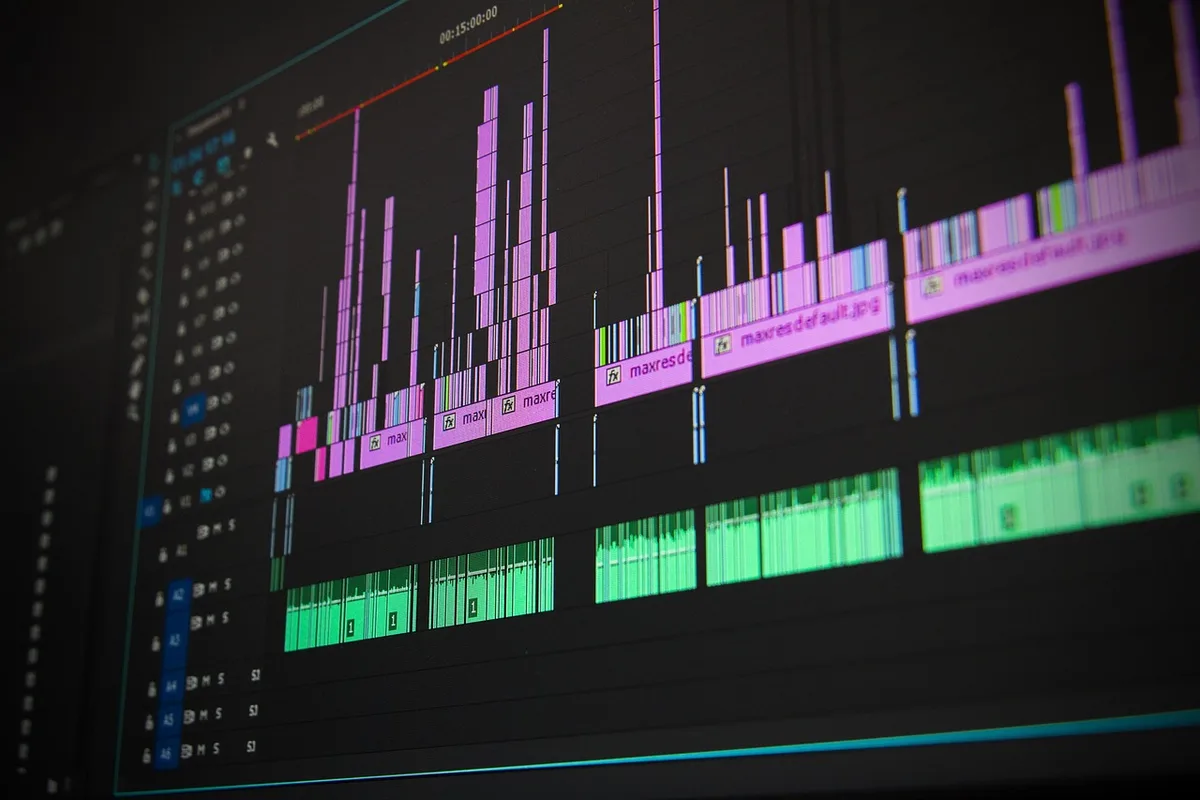
- Sync audio first. Use the clap method: align the waveform spikes manually or use the editor's sync feature (Premiere's "Synchronize" or Resolve's "Auto Sync Audio").
Once synced, nest your multicam clips into a single sequence. In Premiere, select all camera angles and audio, right-click, and choose "Create Multi-Camera Source Sequence." This lets you switch angles in real time during editing.
Cut the Conversation: The Rough Edit
Your goal here is to remove dead air, false starts, and tangents that don't serve the episode. Don't worry about polish yet.
- Use the J-cut and L-cut. These are your best friends for podcast video. A J-cut means the audio from the next clip starts before the video cuts—great for smooth transitions between speakers. An L-cut is the opposite: video cuts but audio from the previous clip continues. Apply these when one host interrupts or when you want to hide a jump cut.
- Cut on motion. If a host gestures or leans forward, cut at that moment. It feels natural and hides the edit.
- Remove filler words sparingly. Don't over-edit—natural ums and ahs are part of conversation. Cut only the ones that distract.
Aim for a rough cut that's about 10% shorter than your raw recording. If your episode was 60 minutes, target 54 minutes after removing pauses and tangents.
Add Visual Interest Without Overdoing It
A static two-shot gets boring fast. Here's how to keep viewers engaged:
- Switch angles every 20–40 seconds. Use your multicam view to cut between wide, host A, and host B. Change on natural pauses or when someone new speaks.
- Add lower thirds. Show each speaker's name and handle for the first 10 seconds after they start talking. Keep them simple: white text, subtle drop shadow, bottom-left corner.
- Insert B-roll or graphics when someone mentions a book, tool, or statistic. A simple screenshot or stock clip over the audio works wonders.
- Use a subtle zoom. A slow 5% zoom in on the active speaker can add energy. Apply it with keyframes over 10 seconds.
Don't clutter the screen. One graphic at a time is enough.
Fix the Audio (This Is Non-Negotiable)
Viewers forgive mediocre video, but they won't forgive bad audio. After your rough cut:
- Normalize levels. Set each speaker's peak to around -6 dB and average around -16 LUFS (use the loudness meter in your editor).
- Apply noise reduction. Use Premiere's "DeNoise" or Resolve's "Noise Reduction" effect. Apply it gently—over-processing makes voices sound robotic.
- EQ each track. Roll off low frequencies below 80 Hz to remove rumble. Boost slightly around 3–5 kHz for clarity.
- Add a gentle compressor. This evens out loud laughs and quiet mumbles. A 2:1 ratio with a -18 dB threshold is a good starting point.
If you're using Premiere, the Essential Sound panel has presets for "Podcast Voice" that handle most of this automatically.
Color Grade for Consistency
Your cameras might have different color profiles. Match them:
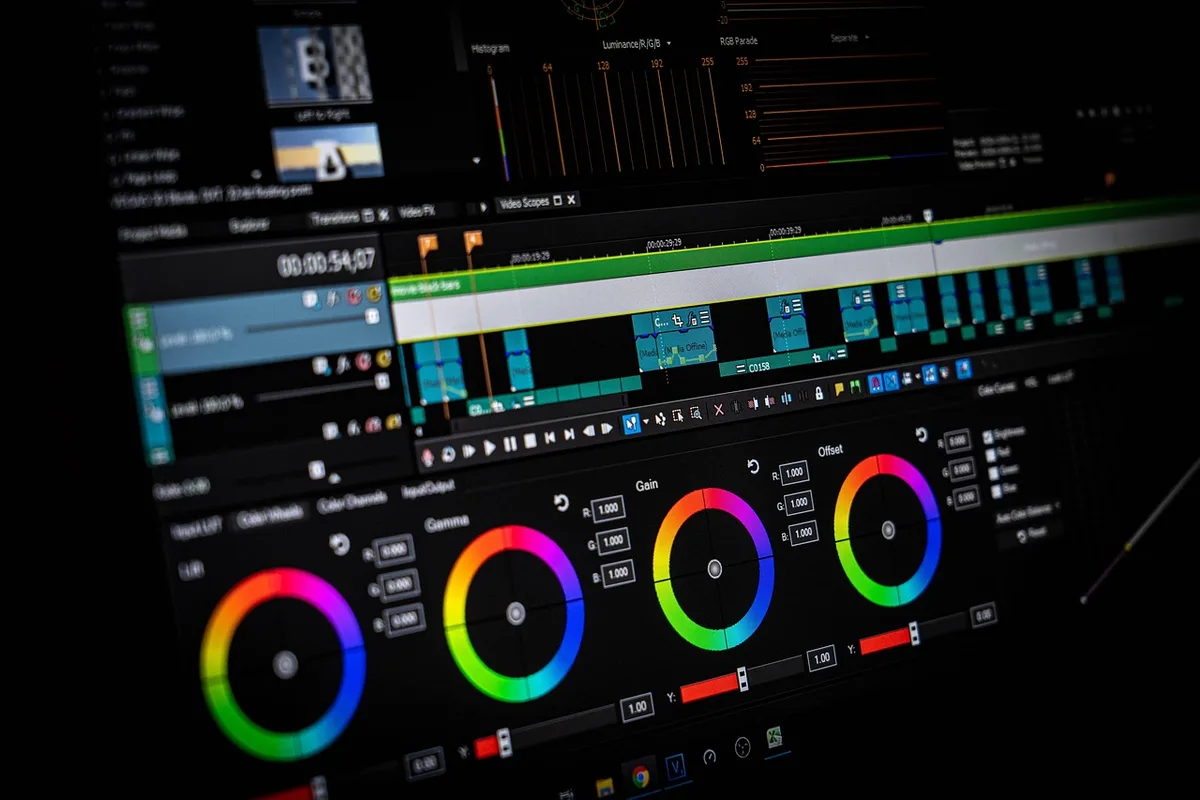
- Use Lumetri Color (Premiere) or Color Page (Resolve). Start with a basic correction: adjust exposure and white balance so both angles look the same.
- Apply a creative LUT sparingly. A subtle film emulation LUT can unify the look. Reduce its intensity to 50% so skin tones stay natural.
- Check skin tones. Use the vectorscope—skin tones should fall along the skin tone line. If they're too red or green, adjust hue.
Export Settings That Won't Ruin Your Quality
When you're done, export with settings that balance quality and file size:
- Format: H.264 (MP4)
- Resolution: 1920x1080 (or 4K if your source is 4K)
- Frame rate: Match your sequence
- Bitrate: 10–15 Mbps for 1080p, 35–45 Mbps for 4K
- Audio: AAC, 320 kbps, 48 kHz
Always watch the exported file from start to finish before uploading. Check for sync issues, audio pops, and any missed cuts.
A Practical Takeaway You Can Use Today
Before your next edit, create a template project. Set up your multicam sequence, audio presets, lower third graphics, and export settings once. Save it as a template. Then, for every new episode, you just import footage, sync, and start cutting. This alone can cut your editing time by 30–40%.
If you'd rather focus on recording and let someone else handle the timeline, MLHMTECH offers professional video editing and content production services for podcasters and brands. Visit mlhmtech.com to see how they can turn your raw footage into a polished, publish-ready episode.