

You've recorded a solid talking head video, but the raw footage feels stiff, the audio has room echo, and every pause and filler word is still there. Editing is what turns that raw clip into something people actually watch to the end. Here's the exact workflow professionals use to edit talking head videos efficiently and make them look polished.
Start with a Clean Timeline and a Rough Cut
Before you touch a single cut, organize your project. Import your footage, create a sequence that matches your recording settings (usually 4K or 1080p at 24, 30, or 60fps), and set your scratch disks. In Premiere Pro, use the Project panel to create bins for Footage, Audio, Graphics, and Exports. In DaVinci Resolve, use Smart Bins or just color-code your clips.
Now watch your entire recording once without editing. Mark the good takes and note the timestamps of any major mistakes. Then start your rough cut:
- Cut the dead air at the start and end. Trim the first and last 2–3 seconds of silence.
- Remove obvious mistakes and long pauses. Use the razor tool (C in Premiere, B in Resolve) to slice out flubs. Don't worry about micro-editing yet.
- Keep the energy up. If a sentence trails off or you repeat yourself, cut it. A tight rough cut is usually 10–20% shorter than the raw footage.
A common mistake is trying to make every cut perfect on the first pass. Resist that. Get the story flow right first.
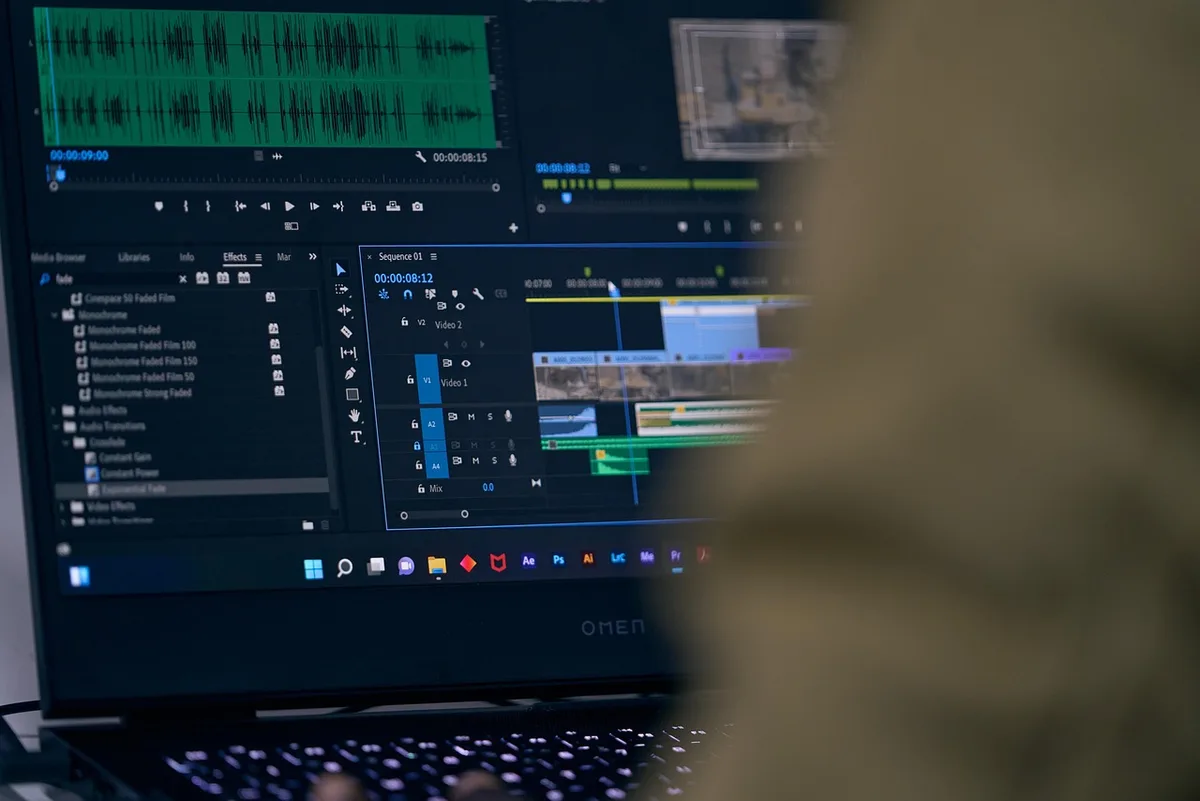
Tighten the Edit: Remove Filler Words and Add Jump Cuts
This is where talking head videos live or die. Viewers forgive average lighting, but they won't forgive a rambling 30-second pause.
Use these techniques to keep the pace snappy:
- Use the J-cut and L-cut. Overlap audio from one clip with video from another to hide awkward cuts. For example, let the audio of your next sentence start 10 frames before the visual cut.
- Cut on motion or emphasis. Make your cuts on a hand gesture or a head nod, not mid-blink. This makes jump cuts feel intentional.
- Remove filler words with a script or transcript. In Premiere Pro, use the Text-Based Editing panel to delete "um" and "uh" directly from the transcript. In Resolve, use the Detect Scene Cuts feature or manually mark them.
- Add B-roll or cutaways every 20–30 seconds. This breaks the visual monotony and gives you a place to hide cuts. Even a simple screen recording or a relevant stock clip works.
- Use punch-ins for emphasis. Scale your clip to 110–120% for a few seconds to create a subtle zoom that signals importance. Keyframe the scale so it's smooth, not jarring.
A pro tip: keep a "filler word" bin. When you cut out "um," drag that clip to a separate bin so you can quickly review if you accidentally removed a needed word.
Fix the Audio (This Matters More Than You Think)
Bad audio makes a video unwatchable. Good audio makes even a mediocre video feel professional. Here's the standard audio chain for talking head videos:
- Noise reduction: Apply a gentle noise reduction effect (Premiere: DeNoise; Resolve: Noise Reduction). Don't overdo it or you'll get a robotic, underwater sound.
- EQ: Use a high-pass filter at 80–100 Hz to remove rumble, then a slight boost around 3–5 kHz for clarity. Cut muddy frequencies around 200–300 Hz if your voice sounds boxy.
- Compression: Use a 2:1 to 4:1 ratio with a threshold around -18 dB to even out loud and soft parts. Aim for consistent levels around -12 to -6 dB peak.
- De-essing: If your "s" sounds are harsh, apply a de-esser or manually reduce the 5–8 kHz range on those syllables.
- Background music: Add a subtle music bed at -25 to -30 dB under your voice. Duck the music (sidechain compression) so it automatically lowers when you speak.
In DaVinci Resolve, the Fairlight page has a built-in Voice Isolation tool that works surprisingly well. In Premiere, the Essential Sound panel can auto-match loudness across clips.

Color Correct and Grade for Consistency
Talking head videos often have inconsistent lighting between takes or camera angles. Start with correction, then move to creative grading.
- Balance exposure and white balance first. Use your scopes (Waveform and Vectorscope) to set black and white points. Skin tones should sit around the 70–80 IRE line on the waveform.
- Match shots. If you have multiple cameras or takes, use the Color Match feature in Premiere or Resolve to align them.
- Apply a subtle grade. For a clean, professional look, add a slight S-curve to the contrast and warm up the highlights just a touch. Avoid heavy teal-and-orange grades for talking head videos—they date quickly.
- Use a LUT only as a starting point. If you use a LUT, dial back its intensity to 50–70% and adjust from there.
A common mistake is over-grading skin tones. Keep them natural. If you're unsure, compare your grade to a well-lit YouTube video from a creator you admire.
Add Captions, Graphics, and B-Roll
Captions boost retention and accessibility. Don't rely on auto-generated captions alone—they're often wrong. Use Premiere's Speech to Text or Resolve's Subtitle track to generate a base, then manually correct names and technical terms.
For graphics:
- Lower thirds: Keep them simple. Name and title, fade in and out over 10 frames.
- Callout boxes or arrows: Use these to highlight key points, but don't clutter the screen.
- Progress bars or chapter markers: If your video is longer than 5 minutes, add a subtle progress bar at the bottom.
B-roll should support the narration, not distract. If you mention a software tool, show a quick screen recording. If you talk about a location, show a relevant clip. Aim for one B-roll cut every 20–30 seconds.
Export with the Right Settings
The final step is exporting. Use these settings for the best balance of quality and file size:
- Format: H.264 (MP4) for YouTube and social media.
- Resolution: Match your sequence settings (1080p or 4K).
- Frame rate: Match your source footage.
- Bitrate: For 1080p, use 10–15 Mbps VBR 2-pass. For 4K, use 35–45 Mbps.
- Audio: AAC, 320 kbps, 48 kHz.
If you're uploading to YouTube, export at the highest quality you can and let YouTube handle the compression. For Instagram or TikTok, export a separate vertical version (1080x1920) with captions burned in.
A Practical Takeaway You Can Use Today
Open your latest talking head project and do only this: cut out every pause longer than 0.5 seconds and every filler word. Then apply a high-pass filter at 80 Hz and a gentle compressor. That 15-minute fix will make your video feel 50% more professional. Don't worry about color or B-roll yet—just tighten the edit and fix the audio. You'll immediately see the difference.
If you'd rather hand off the entire editing process to a team that does this every day, MLHMTECH offers professional video editing and content production services for creators and brands who want polished results without the learning curve. Visit mlhmtech.com to see how they can help.