
You've returned from an incredible trip with hours of footage, but now you're staring at a messy timeline, overwhelmed by the thought of turning it into a compelling travel vlog. Editing travel footage is uniquely challenging—you're dealing with changing lighting, unpredictable audio, and the pressure to capture the feeling of a place. This guide breaks down the process into a clear, repeatable workflow so you can edit faster and produce vlogs that keep viewers watching.
Start with a Story, Not a Timeline
Before you touch a single clip, decide what your vlog is actually about. A travel vlog isn't just a highlight reel; it's a story with a beginning, middle, and end. Ask yourself: What was the most memorable moment? What did I learn? What emotion do I want viewers to feel?
Write a one-sentence logline, like "A chaotic but joyful day exploring Bangkok's street food markets." This becomes your north star. Then, create a simple outline with three acts:
- Act 1: Setup – Introduce the destination and your goal for the day.
- Act 2: Journey – Show the experiences, challenges, and discoveries.
- Act 3: Resolution – Reflect on the experience or share a takeaway.
This outline will guide your clip selection and prevent you from making a random montage.
Organize Your Footage Like a Pro
A cluttered media bin kills creativity. Spend 15 minutes organizing before editing. In your editor (Premiere Pro, Final Cut Pro, DaVinci Resolve), create bins or folders for:
- A-Roll – Main talking-head or narrative clips.
- B-Roll – Scenic shots, details, and cutaways.
- Audio – Voiceovers, ambient sound, music.
- Graphics – Maps, titles, lower thirds.
Rename clips descriptively (e.g., "Tokyo_Shibuya_Crossing_Wide"). Use markers to flag your best moments. This upfront work saves hours of scrubbing later.
Build a Rough Cut with Pacing in Mind
Travel vlogs live or die by pacing. Viewers have short attention spans, so you need to hook them immediately. Start with a cold open—a compelling 5-second teaser of the best moment—then roll the title sequence.
When assembling your rough cut:
- Cut on action – Trim clips at the moment of movement to keep flow natural.
- Use J-cuts and L-cuts – Let audio from the next scene start before the video cuts, or let video cut while previous audio continues. This smooths transitions.
- Keep clips short – Most B-roll shots should be 2-4 seconds. If a shot doesn't add new information or emotion, cut it.
- Vary shot types – Alternate between wide establishing shots, medium shots, and close-ups to maintain visual interest.
Aim for a rough cut that's about 20% longer than your target final length. You'll trim it down later.
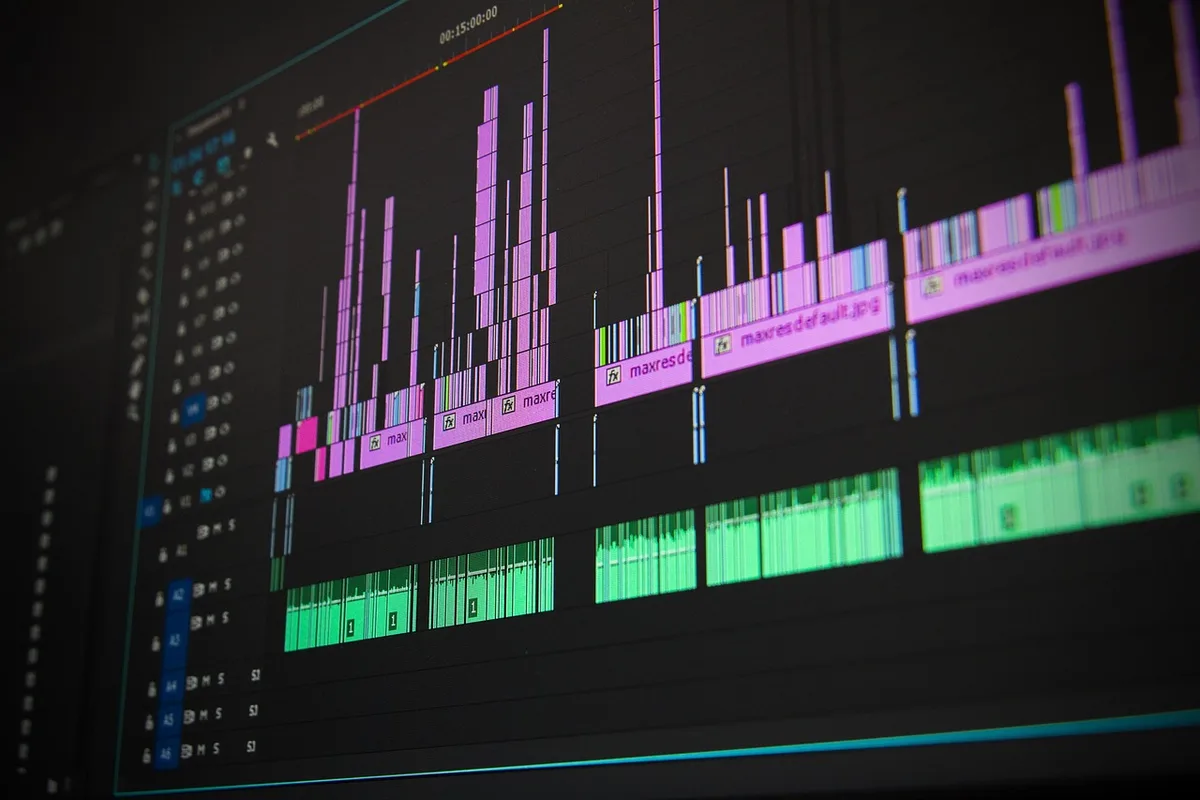
Enhance with Music, Sound Design, and Voiceover
Audio is half the experience. Travel vlogs often suffer from poor audio—wind noise, distant dialogue, or inconsistent levels. Fix this in three layers:
- Music – Choose tracks that match the mood. For upbeat city scenes, use energetic percussion; for scenic landscapes, go for ambient or orchestral. Always license music properly (Epidemic Sound, Artlist).
- Ambient sound – Layer in natural sounds: street chatter, waves, birds. Record these separately or use foley libraries. Keep them subtle under the music.
- Voiceover – Record a narration that ties the story together. Speak naturally, and don't be afraid to show personality. Use a noise-reduction tool (like Adobe Enhance Speech or iZotope RX) to clean it up.
Balance levels: voiceover at -6 dB to -3 dB, music at -18 dB to -12 dB, and ambient sound at -20 dB. Use keyframes to duck music under dialogue.
Color Grade for Consistency and Mood
Travel footage often has mixed lighting—sunny exteriors, dim interiors, and everything in between. A basic color grade unifies the look and sets the tone.
- Start with correction – Adjust exposure, white balance, and contrast for each clip so they match. Use scopes (waveform, vectorscope) to guide you.
- Apply a creative LUT – A LUT (Look-Up Table) gives a cinematic feel. But don't just slap it on; adjust intensity to avoid oversaturation.
- Use masks for local adjustments – Brighten a subject's face or darken a distracting background.
In DaVinci Resolve, use the Color page's node system for precise control. In Premiere Pro, Lumetri Color is your friend. Keep it simple—consistency matters more than complexity.
Add Graphics and Text That Inform, Not Distract
Viewers love context: where are you? What's that dish? Use lower thirds, maps, and pop-up text to add value. But keep them clean and minimal.
- Lower thirds – Include your name and location. Use a simple, readable font (e.g., Montserrat, Roboto).
- Maps – Animate a route to show your journey. Tools like Google Earth Studio or Adobe After Effects can help.
- Subtitles – Add captions for accessibility and silent viewing. Auto-generate them, then correct errors.
Avoid overloading the screen. One graphic at a time is enough.
Polish and Export for Each Platform
Before exporting, watch your vlog from start to finish without stopping. Check for:
- Audio pops or abrupt cuts – Add short crossfades (2-4 frames) on audio transitions.
- Color consistency – Scan for shots that look too warm or cool.
- Pacing – Are there any dull moments? Trim them.
Export settings depend on where you'll publish:
- YouTube – 4K if possible, H.264 codec, bitrate 50-80 Mbps. Use a high-quality preset.
- Instagram/TikTok – 1080x1920 vertical, H.264, 10-15 Mbps. Keep it under 60 seconds for Reels.
- Facebook – 1080p, H.264, 8-12 Mbps.
Always export a master file at the highest quality for archiving.
Practical Takeaway: Create a Template
To speed up future edits, turn your workflow into a template. In your editor, save a project with your bin structure, color-grading nodes, and audio track layout. Next time, you'll skip the setup and jump straight into storytelling. Start with your next vlog: organize footage, build a rough cut with tight pacing, layer audio, color grade, and export. You'll be amazed at how much faster and better your edits become.
If you'd rather focus on creating content and leave the editing to experts, MLHMTECH offers professional video editing and content production services for creators and brands. Visit mlhmtech.com to learn more.