
You've shot the footage, the track is fire, but now you're staring at a timeline full of clips and wondering where to start. Editing a music video isn't just about cutting to the beat—it's about building a visual rhythm that matches the song's energy and tells a story. Whether you're using Premiere Pro, Final Cut Pro, or DaVinci Resolve, this workflow will help you turn raw footage into a polished video that artists and audiences love.
1. Prepare Your Project and Sync Audio
Before you touch a single clip, set up your project for success. Good organization saves hours of frustration later.
- Create a new project and set the correct frame rate (usually 23.976, 24, 25, or 30 fps, matching your footage).
- Import all footage, audio tracks, and any graphics into clearly named bins: Footage, Audio, Graphics, Exports.
- Label your clips by scene or shot type (e.g., "Wide_LipSync," "CloseUp_Dance").
Syncing audio is critical. If you shot with a separate audio recorder or the artist lip-synced to a playback track, you need perfect sync.
- Place the final mixed song on the timeline as your master audio track.
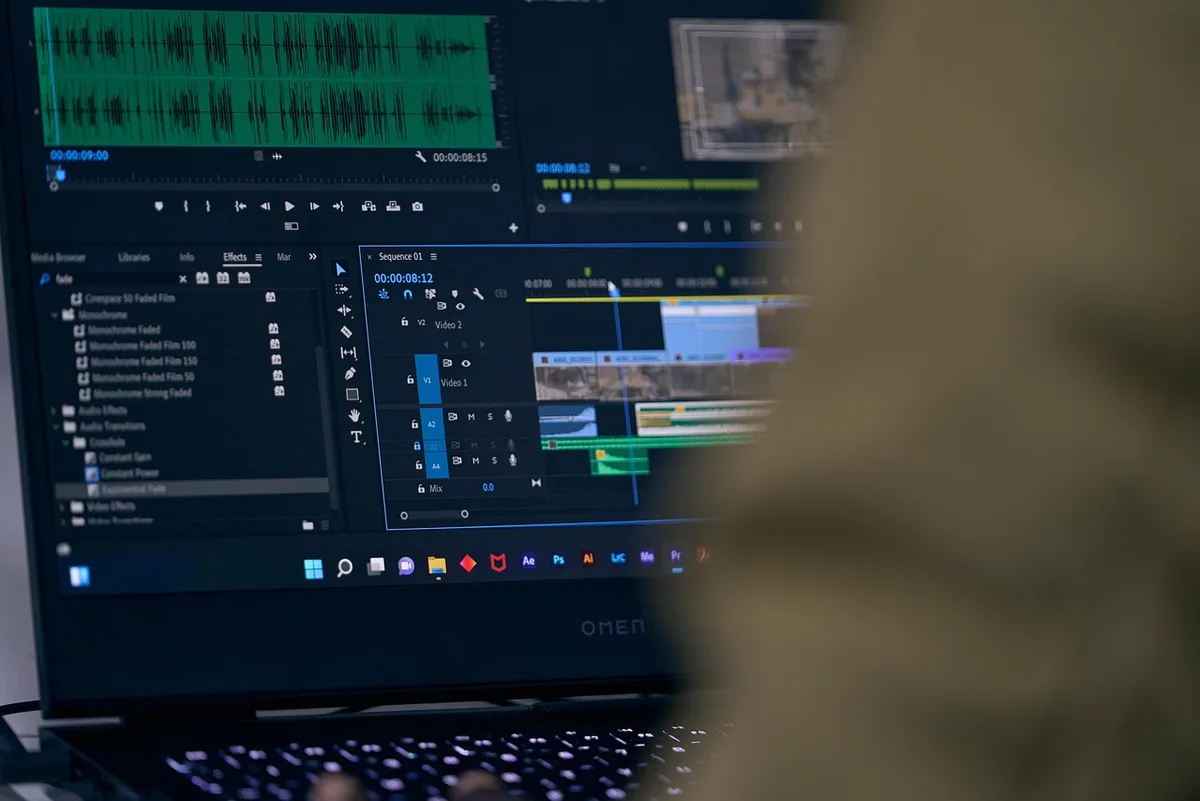
- For each clip where the artist is singing or performing, align the waveform of the on-camera audio with the master track. In Premiere Pro, select both clips and use Synchronize (right-click > Synchronize). In DaVinci Resolve, use Auto Align in the Fairlight page.
- Once synced, group the video and audio for each take (right-click > Group in Premiere, or Compound Clip in FCP) so they stay together when you move them.
2. Map the Song Structure and Mark Beats
A music video lives and dies by its rhythm. You need to know the song's structure inside out.
- Listen to the track multiple times and note the sections: intro, verse, chorus, bridge, outro.
- Mark key beats using markers. In most editors, press M to add a marker at the playhead. Place markers on every major beat, snare hit, or lyric change.
- Use beat detection tools if available. Premiere Pro has Beat Edit (a paid plugin), but you can also manually tap markers. DaVinci Resolve has a Beat Detector in the Fairlight page that can generate markers automatically.
Pro tip: Create a separate marker track for different elements (e.g., red for cuts, blue for effects) to stay organized.
3. Build a Rough Cut with Beat-Synced Cuts
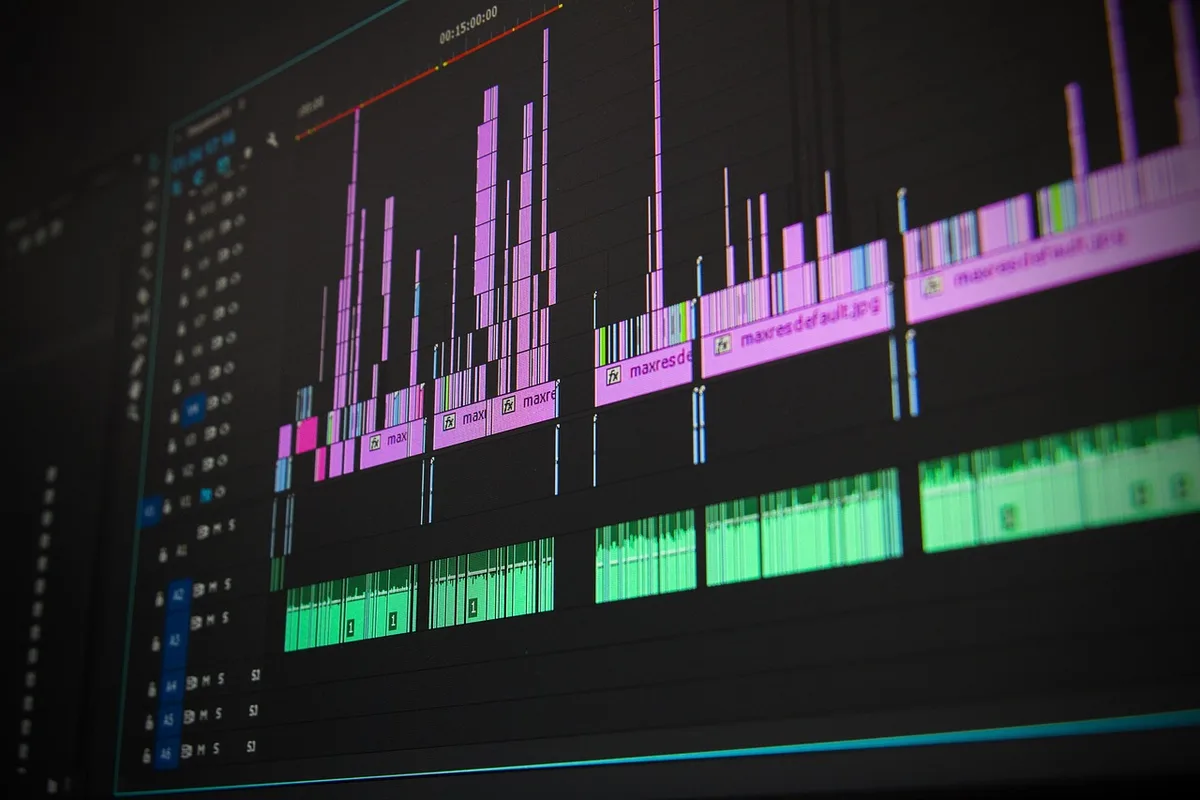
Now the fun begins. Start by laying down your best takes on the timeline, following the song's energy.
- Begin with the chorus—it's usually the most energetic part and sets the tone.
- Cut on the beat but don't be a slave to it. Vary cut lengths: quick cuts for high energy, longer holds for emotional moments.
- Use J-cuts and L-cuts to make transitions smoother. For example, let the audio from the next scene start before the video cuts (J-cut), or let the video linger after the audio changes (L-cut).
- Keep the artist's performance front and center. If they're lip-syncing, ensure the mouth movements match the lyrics perfectly.
Example: In a pop video, the chorus might have cuts every 2 beats, while the verse holds shots for 4-8 beats to build tension.
4. Add Visual Effects and Transitions That Enhance, Not Distract
Effects should support the song, not overpower it. Use them sparingly and purposefully.
- Transitions: Use simple cuts for 90% of the video. Save flashy transitions (whip pans, glitches) for moments that need a punch—like a drum fill or a lyric drop.
- Speed ramps: Slow down or speed up clips to match the music's tempo changes. In Premiere Pro, use Time Remapping (right-click > Speed/Duration) and adjust the curve.
- Text and graphics: Add lyrics or titles only if they add value. Keep them legible and on-brand.
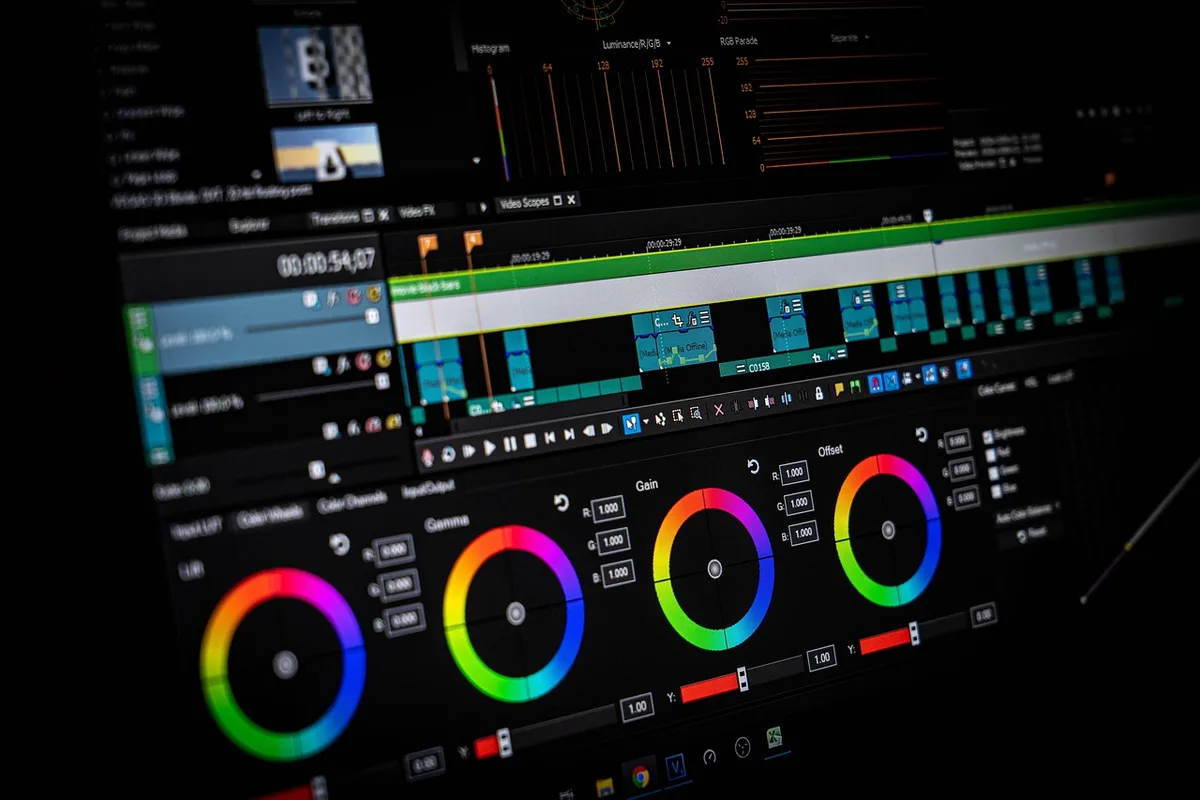
- Color grading: This is where you set the mood. Use LUTs as a starting point, then fine-tune with curves and color wheels. For a cohesive look, apply a subtle grade across all clips.
Watch out for over-editing. If the viewer notices the effect more than the artist, you've gone too far.
5. Refine Pacing and Story
A rough cut is just the beginning. Now you need to shape the narrative and ensure the pacing feels right.
- Watch the cut without stopping and take notes on what feels off. Are there moments that drag? Does the story make sense?
- Trim unnecessary shots. If a clip doesn't move the story forward or match the energy, cut it.
- Check continuity. Ensure outfits, locations, and props are consistent across cuts (unless you're intentionally breaking continuity for effect).
- Get feedback from the artist or director. They might have specific requests or see things you missed.
Example: If the video tells a story (e.g., a love story), make sure the emotional arc peaks at the right moment—usually the bridge or final chorus.
6. Polish Audio and Color
Even though the song is pre-mixed, you still need to handle audio elements like sound effects or dialogue.
- Balance audio levels: Keep the music at -6 dB to -3 dB and any added effects (whooshes, hits) slightly lower so they don't overpower the track.
- Add Foley or sound design if needed—like footsteps or ambient noise—to make the visuals feel real.
- Color grade for consistency. Use scopes (waveform, vectorscope) to ensure skin tones are accurate and the overall look is balanced.
7. Export with the Right Settings
Don't let a bad export ruin your hard work. Choose settings that match the platform.
- For YouTube: H.264, 1080p or 4K, bitrate 12-15 Mbps for 1080p, 45-50 Mbps for 4K.
- For Instagram/TikTok: H.264, 1080x1920 (vertical), bitrate 8-10 Mbps.
- For broadcast: ProRes 422 HQ or DNxHD.
Always double-check the audio sync after export—sometimes compression can cause slight shifts.
Practical Takeaway
Start your next music video edit by syncing audio and marking beats before you make a single cut. This one habit will cut your editing time in half and give you a tighter, more professional result. And remember: the best edit is the one you don't notice—it just feels right.
If you'd rather hand off the editing to professionals, MLHMTECH offers expert video editing and content production services for creators and brands. Visit mlhmtech.com to see how they can bring your music video to life.