

You've shot footage of your product, but the raw clips look flat, the pacing drags, and the colors don't match what the item actually looks like in person. Knowing how to edit product videos properly is the difference between a clip that gets scrolled past and one that drives add-to-carts. This guide walks through the exact editing workflow used for e-commerce videos — from organizing footage to exporting a file that looks sharp on every platform.
Start With the Right Footage and a Clear Goal
Editing can't fix a video that was shot without a plan. Before you open your editor, decide what the video needs to do: show the product clearly, demonstrate how it works, or build desire with lifestyle shots. Most product pages need at least three versions:
- A 15–30 second hero clip for the product page and social ads
- A 6–10 second loop for Instagram Reels, TikTok, and YouTube Shorts
- A 45–60 second explainer for the full product description or email
Shoot more coverage than you think you need. Get a clean shot on a neutral background, a close-up of textures and details, a shot of the product in use, and a shot of the packaging. That b-roll is what makes editing fast later.
Organize Your Project Before You Cut
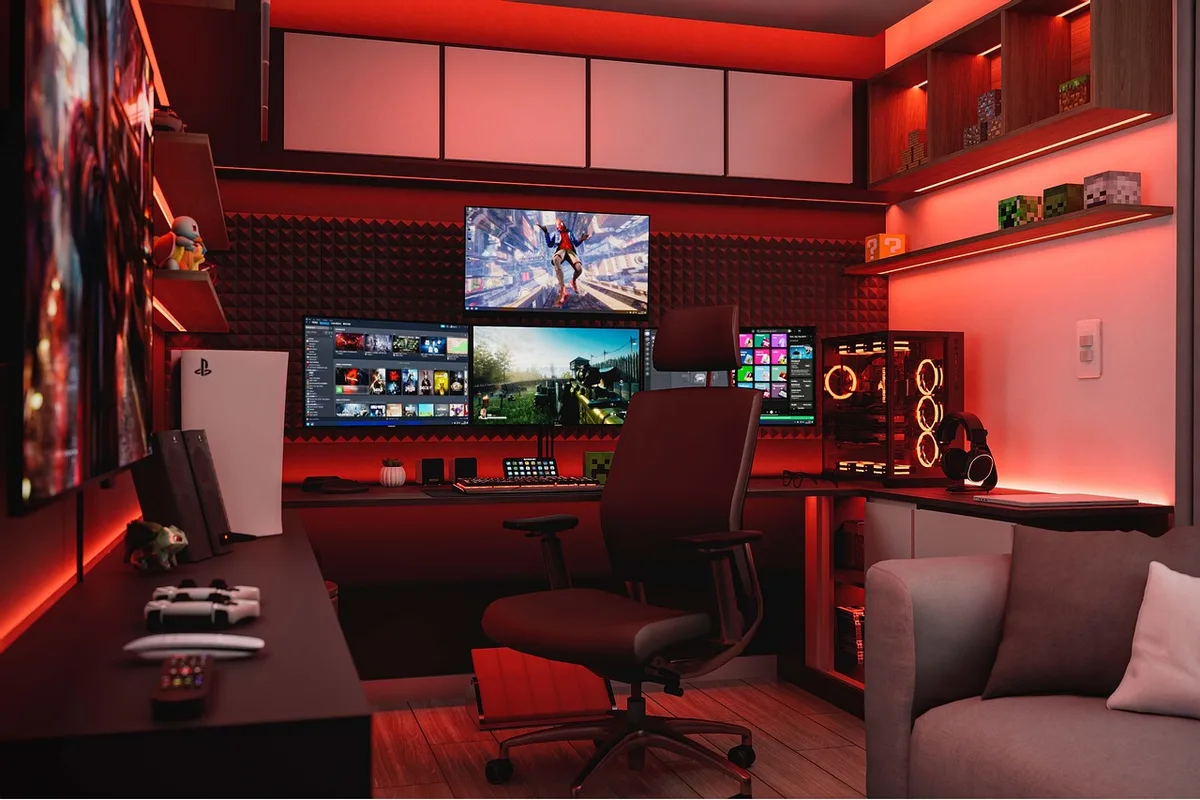
A messy timeline slows you down and causes mistakes. Set up a folder structure that matches the edit:
- Footage — all raw clips, renamed by shot type (e.g.,
hero_front.mp4,detail_stitching.mp4) - Audio — voiceover, music, and sound effects
- Graphics — logos, lower thirds, and text overlays
- Exports — finished versions by platform
In your editor (Premiere Pro, DaVinci Resolve, Final Cut Pro, or CapCut), create a sequence at the correct frame rate and resolution before importing anything. For most product videos, that's 1080p at 30fps, or 4K if you plan to crop for vertical formats.
Build the Edit: Pacing, Structure, and the First Three Seconds
The opening three seconds decide whether anyone watches the rest. Skip the logo animation and the slow pan. Start with the product doing something — a hand opening the box, a close-up of the finish, or the item in use.
A reliable structure for a 30-second product video:
- 0–3s: Hook — the product in action or a striking detail shot
- 3–10s: What it is and who it's for — one clear line of text or voiceover
- 10–22s: Key features shown, not just listed — demonstrate each one
- 22–27s: Social proof or a lifestyle shot showing the result
- 27–30s: Call to action — "Shop now" or the product name and price
Cut on motion. If a hand is reaching for the product, cut to the next shot mid-reach. This hides the edit and keeps energy up. Keep individual shots between 1.5 and 3 seconds; anything longer than 4 seconds in a short product video feels static.
Use J-cuts and L-cuts to make transitions feel natural. A J-cut means the audio from the next clip starts before the picture changes — useful when a voiceover introduces the next feature. An L-cut keeps the previous audio playing over the new shot.
Color Correct, Then Color Grade
Product videos live or die on color accuracy. If the red shirt looks orange, you'll get returns. Do this in two passes:
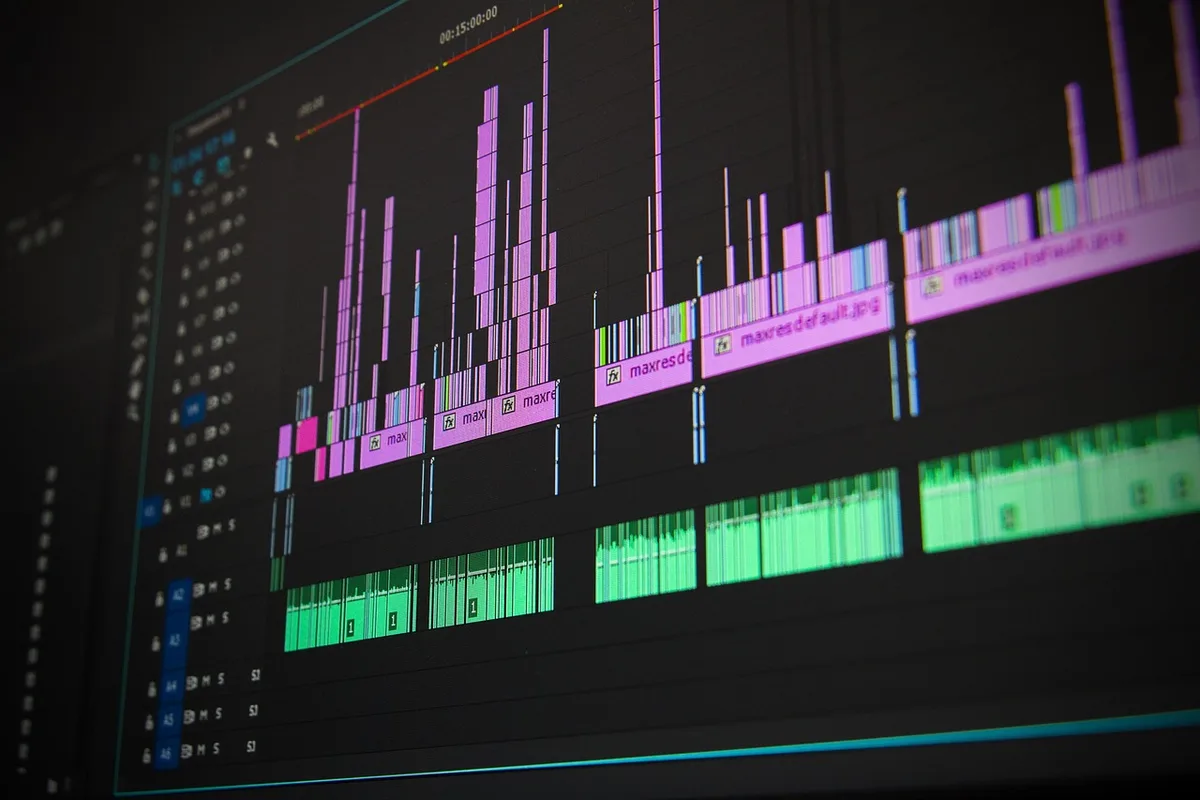
Pass 1 — Correction. Use your editor's scopes (waveform and vectorscope) to set proper black and white points. In DaVinci Resolve, open the Color page and use the Lift, Gamma, Gain wheels. In Premiere Pro, use the Lumetri Color panel's Basic Correction tab. Match every clip to the same white balance and exposure so cuts don't jump.
Pass 2 — Grade. Apply a subtle look that fits the brand. Keep saturation modest — over-graded product videos look cheap and inaccurate. If you're editing on a laptop, calibrate your monitor or check the export on a phone, since most buyers will watch on mobile.
A quick trick: place a color checker card in the first frame of each setup. In post, use the white balance selector on the neutral gray patch to neutralize casts instantly.
Clean Up Audio and Add Sound Design
Bad audio makes good video feel amateur. Even a product video with no voiceover needs clean sound.
- Remove background hiss with a noise reduction tool (Premiere's DeNoise or Resolve's Noise Reduction)
- Normalize voiceover to around -6 dB peak, with music sitting 12–18 dB below the voice
- Add subtle sound effects — a soft whoosh on transitions, a click when a feature appears. Keep them quiet; they should be felt, not heard
- Use royalty-free music that matches the brand tone. Upbeat for lifestyle, minimal for luxury
If you're recording voiceover, do it after the picture lock so the timing matches the visuals exactly.
Add Text Overlays and Graphics That Inform, Not Decorate
Most product videos are watched on mute. Text overlays carry the message.
- Keep on-screen text to 5–7 words per line
- Use a bold, high-contrast font — white text with a subtle drop shadow reads on any background
- Place text in the safe zone: the middle 80% of the frame, away from edges where platform UI covers it
- Animate text in and out with a quick fade or slide (0.3–0.5 seconds), not a spin or bounce
For feature callouts, use a simple line or arrow pointing to the exact detail. In CapCut, the "Text" and "Sticker" tools make this fast; in Premiere, use the Essential Graphics panel to build a reusable lower third.

Export Settings That Look Sharp Everywhere
Exporting wrong undoes hours of editing. Use these settings as a baseline:
- Codec: H.264 for web and social; ProRes 422 if you're handing off to a broadcaster or another editor
- Resolution: 1080p for most platforms; 4K only if the platform supports it and your source footage is 4K
- Frame rate: match your sequence — 30fps for product pages, 24fps for cinematic brand films
- Bitrate: 10–16 Mbps for 1080p at 30fps; 35–45 Mbps for 4K
- Audio: AAC, 320 kbps, stereo
Export a vertical 9:16 version for Reels and TikTok by duplicating the sequence and reframing with auto-reframe (Premiere's Auto Reframe or Resolve's Smart Reframe). Check the final file on a phone before uploading — that's how your customer will see it.
A Repeatable Workflow Saves You Hours
Once you've edited one product video well, turn it into a template. Save your sequence settings, text styles, color grade, and export presets as a project template. The next product video then takes half the time: swap the footage, adjust the grade, update the text, and export. Brands that ship new products monthly should build a small library of reusable graphics and sound effects so every video feels consistent without starting from scratch.
The Practical Takeaway
Open your editor today and build one 30-second product video using the structure above: hook in the first three seconds, cut on motion, correct color with scopes, normalize audio, add one line of text per feature, and export at 1080p H.264. Save that project as a template. You'll have a repeatable system for every product you sell.
If you'd rather hand the editing to a team that does this daily, MLHMTECH offers professional video editing and content production services for creators and brands who want polished product videos without the learning curve — visit mlhmtech.com to see how they can help.