
You've filmed a great clip, but now it's sitting in your camera roll because you're not sure how to make it pop. Editing Instagram Reels doesn't have to be complicated—with the right approach, you can turn raw footage into a scroll-stopping video in minutes. This guide walks you through the exact steps, tools, and techniques to edit Reels that get watched, liked, and shared.
Choose Your Editing Tool: In-App vs. External Apps
Before you start cutting, decide where you'll edit. Instagram's built-in editor is quick and convenient, but external apps give you more control. Here's how they compare:
- Instagram's native editor: Best for simple trims, adding music, and applying basic filters. It's fast and keeps everything in one place, but lacks advanced features like keyframe animations or precise audio ducking.
- CapCut: Free, powerful, and packed with templates, effects, and text animations. Great for trend-driven Reels and quick edits on mobile.
- InShot: User-friendly with robust trimming, speed adjustment, and voiceover tools. Ideal for beginners who want more than the native editor.
- Adobe Premiere Rush: A step up for those comfortable with desktop-style editing. Offers multi-track timelines, color correction, and seamless export to social formats.
For most creators, CapCut or InShot hits the sweet spot between ease and capability. If you're editing on a computer, Premiere Rush or DaVinci Resolve (free) are solid choices.
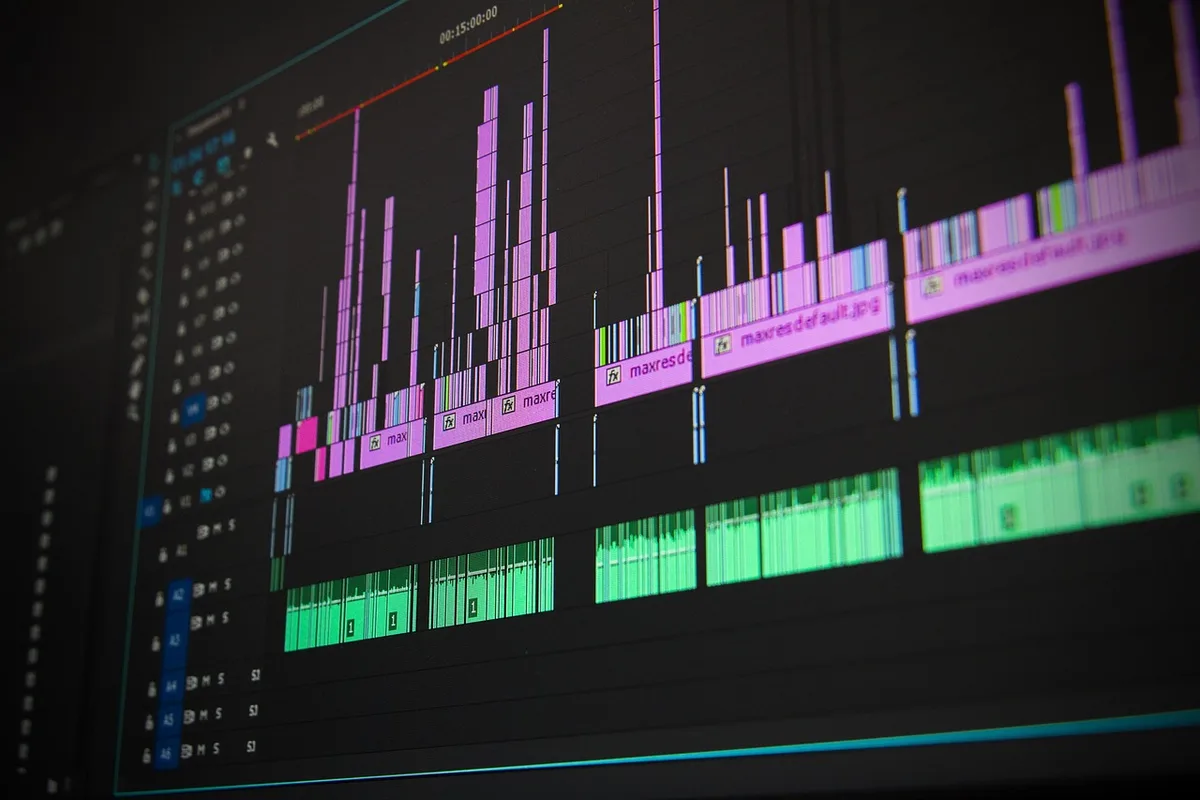
Step-by-Step Editing Workflow for Instagram Reels
Follow this sequence to keep your edit organized and efficient.
1. Import and Organize Your Clips
Open your editing app and import all the footage you want to use. Arrange clips in the order you want them to appear. Trim away any dead space or shaky starts right away—this saves time later.
2. Set the Aspect Ratio and Resolution
Instagram Reels are vertical 9:16. Set your project to 1080x1920 pixels. If you're using horizontal footage, you can either crop to fill the frame or add a blurred background. Cropping is usually better for engagement because it fills the screen.
3. Trim and Arrange for Pace
Reels perform best when they're tight and fast-paced. Aim for 15–30 seconds unless you have a strong reason to go longer. Cut out pauses, filler words, and any moment where nothing happens. A good rule: if a second doesn't add value, remove it.
4. Add Transitions (Sparingly)
Transitions can make your Reel feel polished, but overusing them looks amateur. Stick to simple cuts, and use a transition only when it serves the story—like a swipe to change location or a zoom to emphasize a point. CapCut's "smooth" transitions are popular for a reason: they're subtle.
5. Layer in Text and Captions
Most people watch Reels with the sound off, so on-screen text is non-negotiable. Add captions for spoken dialogue and use bold text overlays for key points. Keep text within the safe zones—avoid the top 15% and bottom 20% of the screen where Instagram's UI covers content. Apps like CapCut have auto-caption features that save time.
6. Sync Audio and Add Music
If you're using voiceover or original audio, make sure it's clear and balanced. Lower background music so it doesn't overpower speech—around -15 to -20 dB under the voice track. Instagram's music library has licensed tracks, but if you edit externally, use royalty-free music from sources like Epidemic Sound or the YouTube Audio Library to avoid copyright issues.
7. Apply Color and Filters
A little color grading goes a long way. Adjust brightness, contrast, and saturation to make footage pop. Avoid heavy filters that distort skin tones. If you're using the native editor, the "Lux" slider is a quick fix for dull lighting.
8. Export and Upload
Export at the highest quality your app allows—1080p HD is standard. When uploading to Instagram, use the "Reels" tab and add your caption, hashtags, and cover image. Choose a cover that clearly shows what the Reel is about; it's the first thing people see on your grid.
Pro Tips to Make Your Reels Stand Out
- Hook viewers in the first second: Start with a bold statement, a question, or a visually striking shot. Don't waste time on intros.
- Use trending audio strategically: Trending sounds can boost reach, but only if they fit your content. Don't force it.
- Keep text large and readable: Mobile screens are small—use bold, sans-serif fonts and high contrast.
- Add a call-to-action: Ask viewers to comment, share, or save. A simple "Save this for later" works well.
- Test different lengths: Some topics work better in 15 seconds, others in 30. Check your analytics to see what holds attention.

Common Mistakes to Avoid
- Over-editing: Too many effects, transitions, and text styles make a Reel look chaotic. Less is more.
- Ignoring the safe zones: Text or key visuals hidden behind Instagram's interface frustrate viewers.
- Using copyrighted music: It can get your Reel muted or taken down. Stick to licensed tracks.
- Poor audio quality: Viewers will scroll past if they can't hear you. Use a external mic or record in a quiet space.
- Not including captions: Accessibility matters, and most people watch without sound.
The Takeaway
Editing Instagram Reels is a skill you can build quickly with the right workflow. Start with a clear plan, use a capable app like CapCut or InShot, and focus on pacing, captions, and audio. Remember: the goal is to keep viewers watching, so cut ruthlessly and add value in every second. Try editing your next Reel using the steps above—you'll see the difference in engagement.
If you'd rather hand off the editing to professionals, MLHMTECH offers video editing and content production services for creators and brands. Visit mlhmtech.com to learn more.