

You've shot your footage, but now you're staring at a timeline full of clips and wondering where to start. Editing can feel overwhelming, but with a clear workflow, it becomes the most rewarding part of creating YouTube videos. This guide walks you through how to edit YouTube videos efficiently, from import to export, using practical steps that work whether you're on Premiere Pro, DaVinci Resolve, or CapCut.
1. Organize Your Footage Before You Touch the Timeline
Before you drag a single clip onto the timeline, spend five minutes organizing. This saves hours later.
- Create a project folder with subfolders for footage, audio, graphics, and exports.
- Rename clips descriptively (e.g., "A-roll_intro_take2.mp4") so you can find them fast.
- Use bins or folders in your editing software to group by scene or segment.
- Sync audio and video if you recorded separately. In Premiere Pro, select both and right-click > Synchronize; in DaVinci Resolve, use the Auto Sync feature.
A clean project means you spend less time searching and more time crafting.

2. Start with a Rough Cut: Assemble the Story
The rough cut is where you lay out the narrative. Don't worry about polish yet.
- Drag your main talking-head or A-roll clips onto the timeline in the order you want the story to flow.
- Use the razor tool (C in Premiere, B in Resolve) to cut out dead air, mistakes, and pauses.
- Keep the pace moving—viewers drop off during slow moments. Aim for a cut every 3–7 seconds in fast-paced sections.
- Add placeholders for B-roll, graphics, or music you'll insert later.
At this stage, watch the rough cut start to finish. Does the story make sense? If not, rearrange clips before moving on.
3. Refine with B-Roll and Visual Interest
B-roll keeps viewers engaged and hides awkward cuts. Overlay relevant footage, images, or screen recordings.
- Place B-roll on a track above your main clip and trim to match the narration.
- Use J-cuts and L-cuts to make transitions smoother: J-cut means the audio from the next clip starts before the video; L-cut means the audio from the previous clip continues over the next video.
- Add text overlays for key points, but keep them brief and readable.
- Include motion graphics or animations sparingly to emphasize important information.
A good rule: every 10–15 seconds, something on screen should change to maintain attention.
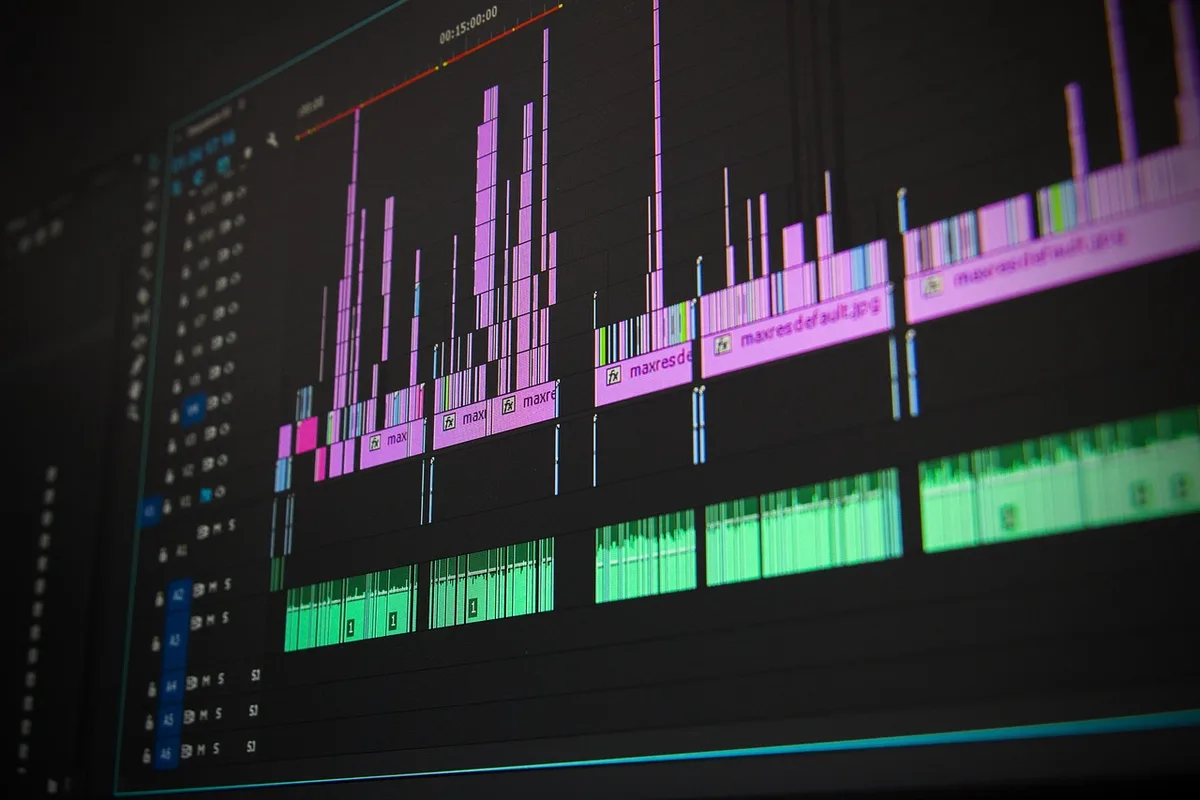
4. Polish Audio: The Most Overlooked Step
Bad audio ruins good video. Viewers forgive shaky footage but not poor sound.
- Normalize audio levels to around -14 LUFS for YouTube (use the Loudness Radar in Premiere or the Normalize function in Resolve).
- Apply noise reduction if there's background hiss (Adobe Audition or Resolve's Noise Reduction).
- Use a compressor to even out loud and quiet parts.
- Add background music at a low volume (around -20 dB) so it doesn't compete with dialogue.
- Use ducking (auto-lowering music when someone speaks) in Premiere via Essential Sound panel.
Test your audio on phone speakers and headphones—most viewers watch on mobile.
5. Color Correction and Grading
Color sets the mood and makes footage look professional.
- Start with correction: adjust exposure, white balance, and contrast using scopes (waveform, vectorscope).
- Apply a LUT (Look-Up Table) for a quick cinematic look, but tweak intensity to avoid over-processing.
- Match shots so colors are consistent across scenes.
- Use adjustment layers for global changes without affecting individual clips.
DaVinci Resolve excels at color, but Premiere's Lumetri Color panel is also powerful.
6. Add Titles, Thumbnails, and End Screens
Your video's packaging matters as much as the content.
- Create a compelling thumbnail (1280x720) with bold text and a clear focal point. Use tools like Canva or Photoshop.
- Add an intro title (2–3 seconds max) and lower-thirds for names or locations.
- Include an end screen with subscribe button and links to other videos (YouTube allows 20 seconds at the end).
- Use YouTube's built-in end screen editor after uploading, or design one in your editing software.
7. Export Settings for YouTube
Exporting with the right settings ensures YouTube doesn't re-compress your video poorly.
- Format: MP4 (H.264)
- Resolution: 1920x1080 (or 3840x2160 for 4K)
- Frame rate: Match your source (24, 30, or 60 fps)
- Bitrate: 12–15 Mbps for 1080p, 35–45 Mbps for 4K
- Audio: AAC, 320 kbps, 48 kHz
In Premiere, use the YouTube 1080p HD preset as a starting point. In Resolve, select YouTube under the Deliver page.

8. Upload and Optimize
Once exported, upload to YouTube and fill in the details:
- Title: Include your main keyword naturally.
- Description: Write a compelling summary with timestamps.
- Tags: Add relevant tags (but don't stuff).
- Cards and end screens: Link to related content.
- Captions: Upload a transcript for accessibility and SEO.
Practical Takeaway
Start your next edit by organizing footage into bins and doing a rough cut without worrying about perfection. Then refine audio and color in separate passes. This structured approach cuts editing time in half and results in a more polished video. Try it on your next upload—you'll notice the difference.
If you'd rather focus on creating content and leave the editing to professionals, MLHMTECH offers expert video editing and content production services for creators and brands. Visit mlhmtech.com to learn more.