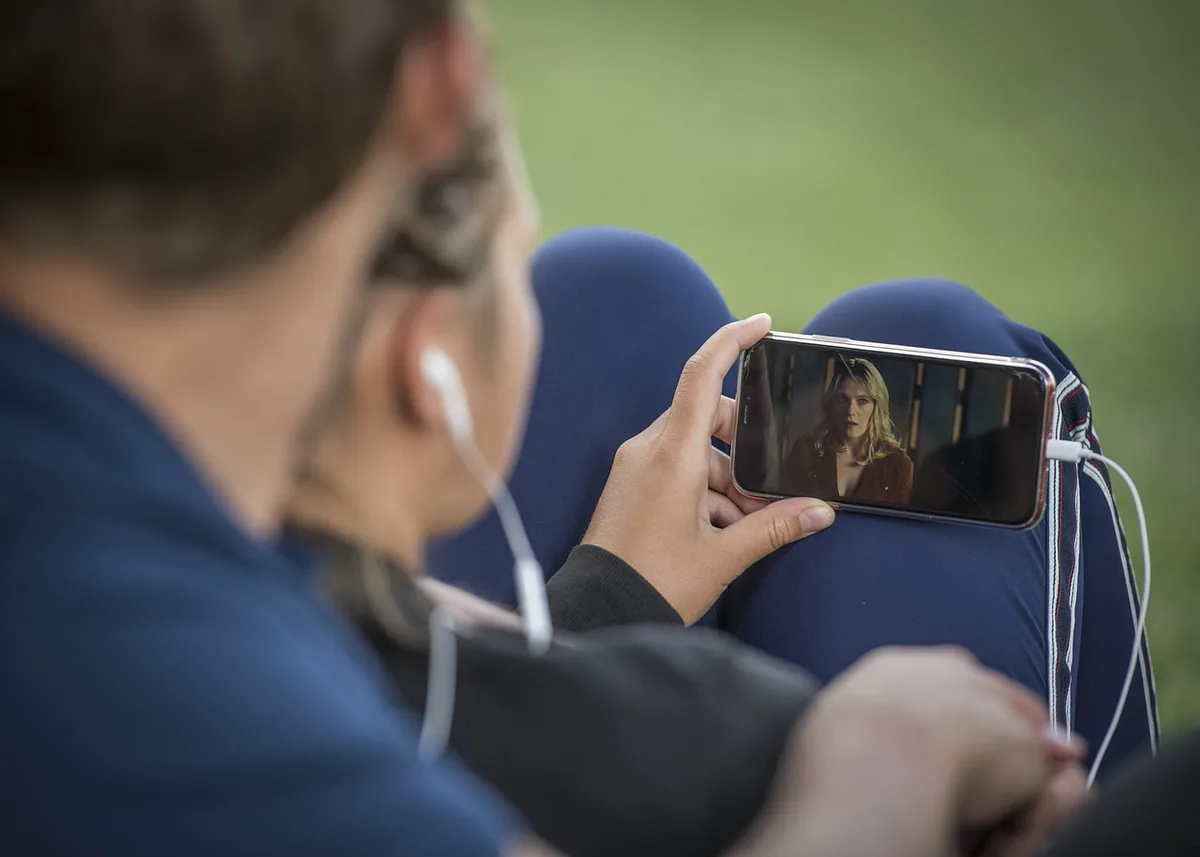

You shot a great clip on your phone, but now it's sitting in your camera roll because you don't know where to start editing. Editing on a phone can feel limited, but with the right app and a simple workflow, you can produce polished videos without ever opening a laptop. This guide shows you exactly how to edit videos on mobile, from importing footage to exporting a final file that looks professional.
Choose the Right Mobile Editing App
Not all mobile editors are created equal. The app you pick depends on what you're making: a quick social media clip, a YouTube vlog, or a client project. Here are the most reliable options and what they're best for.
- CapCut – Free, powerful, and packed with templates, effects, and auto-captions. Great for TikTok, Reels, and Shorts. Works on iOS and Android.
- Adobe Premiere Rush – Simplified version of Premiere Pro. Good for cross-device workflows (start on phone, finish on desktop). Paid subscription after trial.
- VN Video Editor – Free, no watermark, supports multi-track editing and curve speed adjustments. A favorite among mobile creators who want control without cost.
- iMovie – Free on iOS. Basic but reliable for simple cuts, titles, and trailers. Best for beginners who want zero learning curve.
- InShot – Free with watermark (removable via in-app purchase). Excellent for vertical videos and social media formatting.
If you're serious about mobile editing, start with CapCut or VN. Both offer professional-level features without forcing a subscription.

Set Up Your Project Correctly Before You Edit
A clean project setup saves hours of frustration later. Before you drag a single clip onto the timeline, do these three things.
- Match your frame rate. If you shot at 30fps, set your project to 30fps. Mixing 24fps and 30fps footage causes stuttering during playback. Most phones default to 30fps, but check your camera settings.
- Choose the right resolution. For social media, 1080p is plenty. For YouTube or client work, 4K gives you room to crop and zoom without losing quality. But 4K files are larger and can slow down older phones. If your phone struggles, edit in 1080p and export at 1080p.
- Organize your clips. Create a folder in your phone's gallery for the project and move all relevant footage there. This prevents you from scrolling through hundreds of unrelated photos while editing.
Also, enable "Do Not Disturb" mode while editing. A single notification can interrupt rendering and, on some apps, cause the app to crash and lose unsaved work.
Build Your Story: The Editing Workflow
Editing is not just cutting clips together. It's shaping a story. Follow this sequence to keep your edit focused and efficient.
1. Start with a rough cut
Drop all your clips onto the timeline in the order you want them to appear. Don't worry about trimming yet. Just get the sequence right. This is your story's skeleton.
2. Trim the fat
Go through each clip and cut out the boring parts: the pause before you speak, the moment you look away, the accidental shake. A good rule: if a second doesn't add information or emotion, cut it. Mobile editors make trimming easy with drag handles.
3. Add B-roll and cutaways
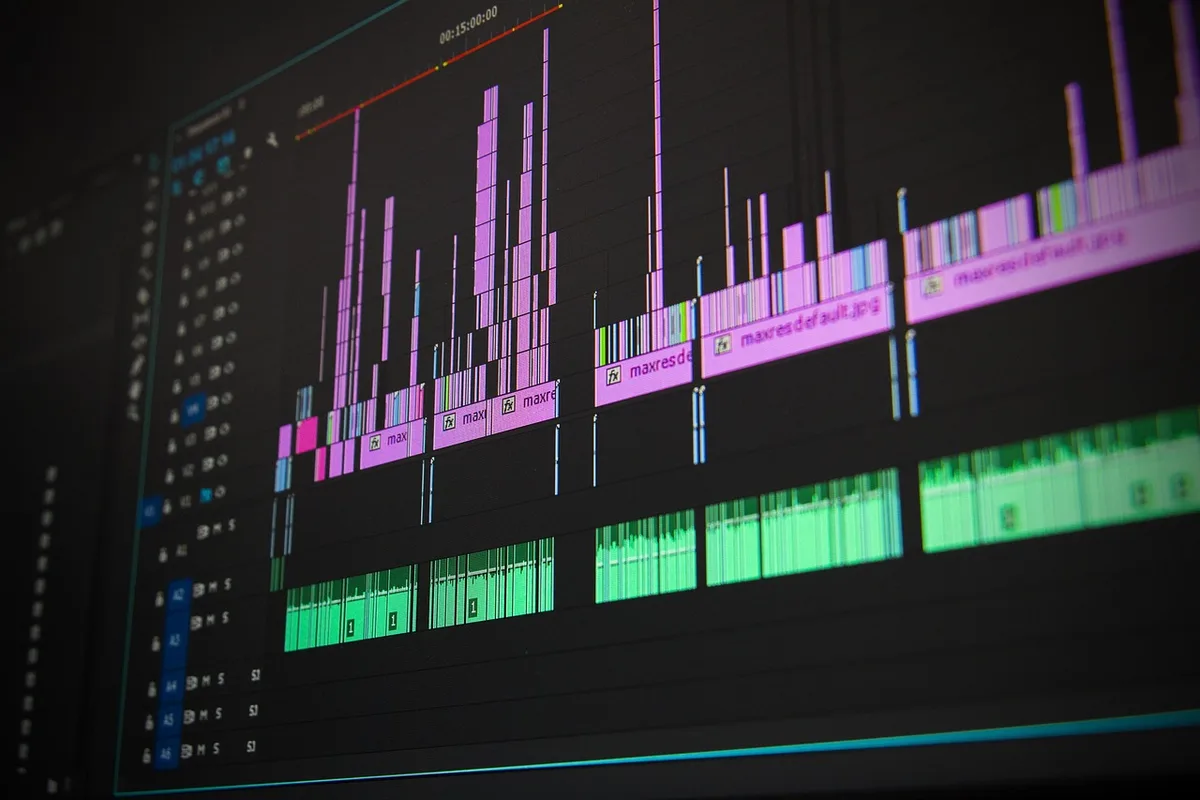
If you're talking to the camera, break up the monotony with B-roll: close-ups of what you're talking about, scenic shots, or text overlays. On mobile, you can overlay B-roll on a second track (CapCut and VN support this). Keep each B-roll clip short—2 to 3 seconds is enough.
4. Layer in music and sound effects
Music sets the tone. Use royalty-free tracks from the app's library or import your own. Keep the music volume low enough that dialogue is clear—around -20dB to -15dB under speech. Add subtle whooshes or clicks for transitions, but don't overdo it.
5. Add text and captions
Most social media videos are watched without sound, so captions are non-negotiable. CapCut and VN offer auto-caption features that generate subtitles from your audio. Always review and correct them—auto-captions often mishear names or technical terms. For titles, use a clean, readable font and keep text on screen for at least 2 seconds.
Fix Common Mobile Editing Problems
Mobile editing comes with unique challenges. Here's how to solve the most frequent ones.
- Shaky footage – Use the app's stabilization tool (CapCut has "Stabilize" under Adjust). It crops slightly but smooths out handheld shakes. For future shoots, brace your elbows against your body or use a cheap phone gimbal.
- Poor audio – Phone microphones pick up wind and room echo. If dialogue sounds hollow, apply a noise reduction filter (available in CapCut and Premiere Rush). For voiceovers, record in a quiet room with the phone close to your mouth, or use a lavalier mic.
- Color looks flat – Phone footage often lacks contrast. Apply a simple LUT (look-up table) or manually adjust contrast, saturation, and highlights. Don't overdo it—subtle is better.
- App crashes – Close other apps before editing, keep at least 2GB of free storage, and export in segments if your project is long. Save your project frequently.
Export Settings That Preserve Quality
Exporting is the final step, and it's where many mobile editors ruin their hard work. Use these settings for the best balance of quality and file size.
- Resolution: Match your project settings. 1080p for social media, 4K for YouTube or client delivery.
- Frame rate: Match your source footage (usually 30fps or 24fps).
- Bitrate: Choose "High" or "Recommended"—don't go below 10 Mbps for 1080p. Higher bitrate means larger file but better quality.
- Format: MP4 (H.264) is universally compatible. H.265 (HEVC) saves space but may not play on older devices.
After exporting, watch the final file on your phone before uploading. Check for audio sync issues, cut-off text, and any glitches that didn't appear in the preview.
Practical Takeaway: Start with a 30-Second Edit
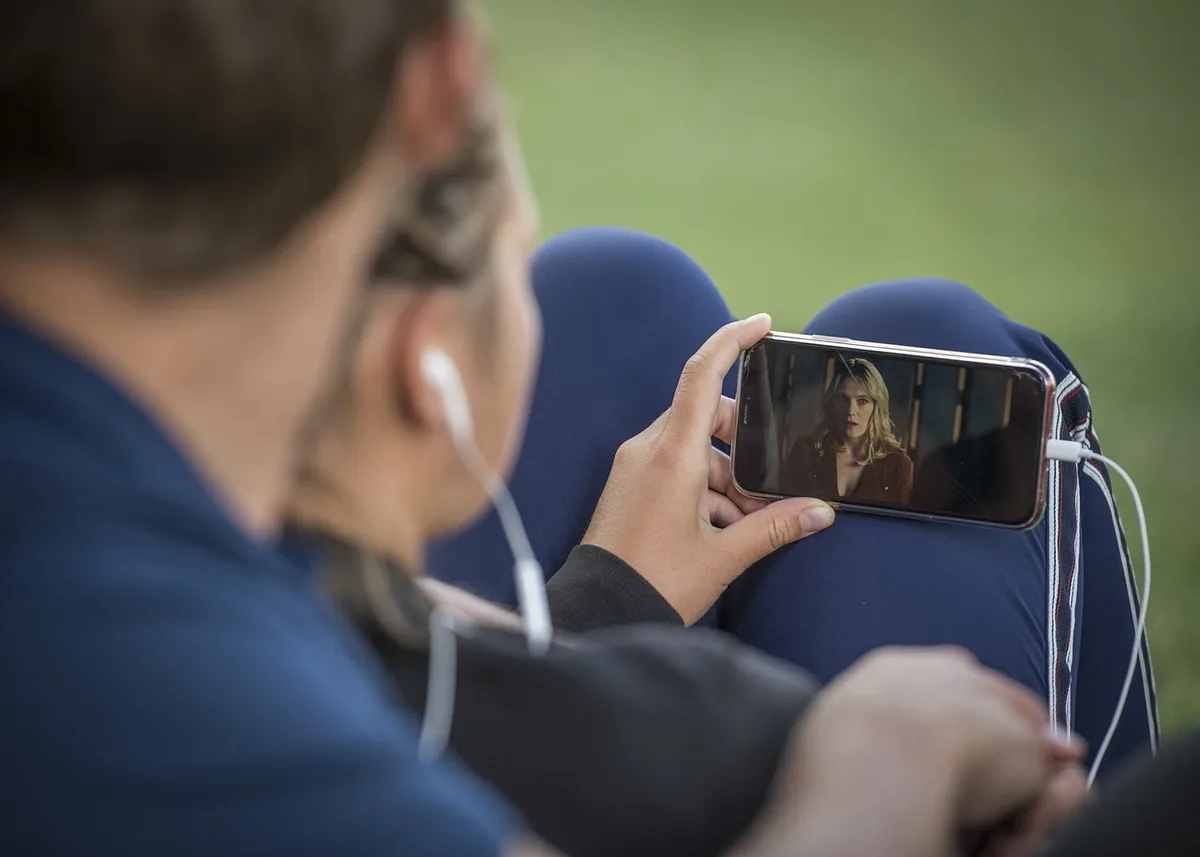
Don't try to edit a 10-minute vlog on your first attempt. Pick 5 to 6 short clips, open CapCut or VN, and make a 30-second video. Focus on clean cuts, one music track, and captions. Export it and watch it on a different device. This small project teaches you the entire workflow—import, trim, layer, export—without overwhelming you. Once you're comfortable, scale up to longer projects.
If you'd rather hand off the editing to professionals, MLHMTECH offers video editing and content production services for creators and brands who want polished results without the learning curve. Visit mlhmtech.com to see how they can help.